
Create and Open projects
how to create a new project, or open an existing project, then how to manage the project folders and files
USER-GUIDE
10/7/20252 min read
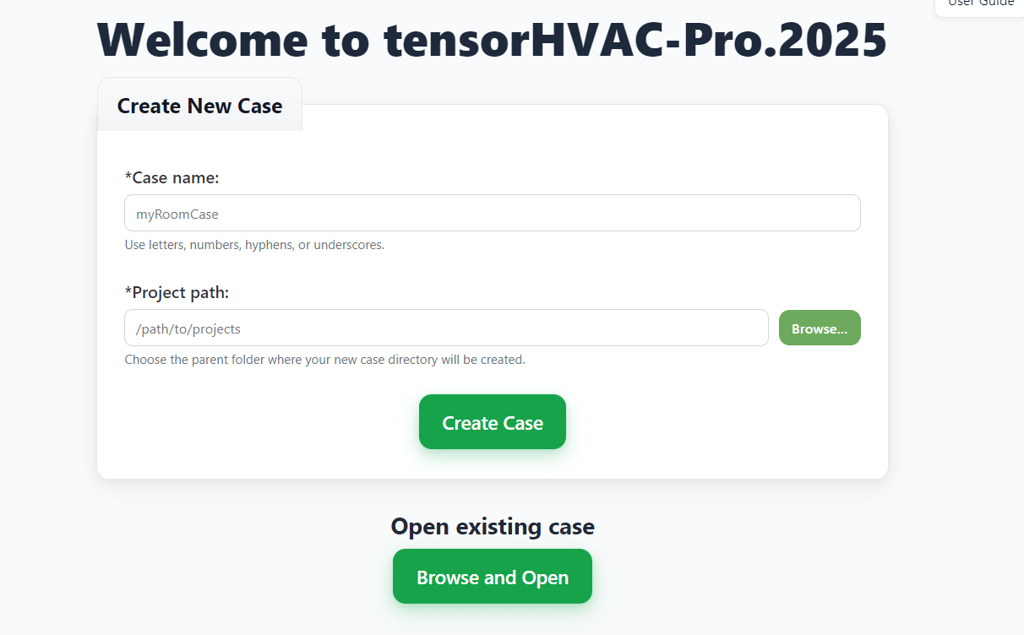
In tensorHVAC-Pro 2025, every simulation is organized into a project folder that contains all the necessary files for setup, meshing, and running your HVAC case. When you first open the software, you will see two main options: Create New Case and Open Existing Case. These options help you either start a new simulation or continue working on an existing one.
To create a new project, begin by entering a Case name in the input field. This name will also become the folder name for your project. You can use letters, numbers, hyphens, or underscores — for example, officeRoom_1 or HVACtest-2025. Then, specify the Project path, which is the main directory where you want your new case folder to be created. You can either type the path manually or click the Browse button to select a location from your computer. After completing both fields, click the Create Case button.
IMPORTANT: Project Folders or Project name cannot have special characters or spaces!!!
Once you create a new case, tensorHVAC-Pro will automatically generate a new folder using your chosen case name at the specified project path. Inside that folder, three essential directories will be copied: 0, constant, and system. These folders contain all the necessary setup files for your simulation. The 0 folder includes the initial conditions such as velocity and temperature fields. The constant folder contains physical properties, geometry, and mesh information. The system folder stores solver settings and control parameters for the simulation. These are standard components of a CFD project structure, but tensorHVAC-Pro manages them automatically, so you don’t need to modify them manually unless you wish to explore advanced settings.
After creating the project, you can proceed to edit the mesh, define inlets, outlets, and boundary conditions, and then run the simulation. When the simulation is completed successfully, a new file with the name .foam will appear inside your project folder. This file allows you to visualize your simulation results directly in a post-processing viewer such as ParaView.
Other folders will be also show up, such as 100, 200, 300... which are called time folders, this are where your result stored, please dont delete these folders if you still want to use your result. The processor0, processor1, ... are called processor folders, this folders are used during calculation, and you can delete them unless you want to resume your simulation from specific time (not from 0 time).
If you already have an existing project that you want to continue working on, use the Open existing case option. Click Browse and Open, navigate to your previous project folder, and select it. tensorHVAC-Pro will load all the associated data, allowing you to review, modify, or rerun the simulation as needed.
In summary, creating a new project in tensorHVAC-Pro automatically sets up all required folders and files in a clean structure, ready for simulation. Your case name defines the folder name, and upon completion, the project will contain a .foam file for visualization. Opening an existing project lets you seamlessly resume work without needing to reset configurations.
Back to user guide