
How to Install tensorHVAC-Pro
Step by step guide installation of tensorHVAC-Pro and how to uninstall it
USER-GUIDE
Wiratama
10/17/20252 min read
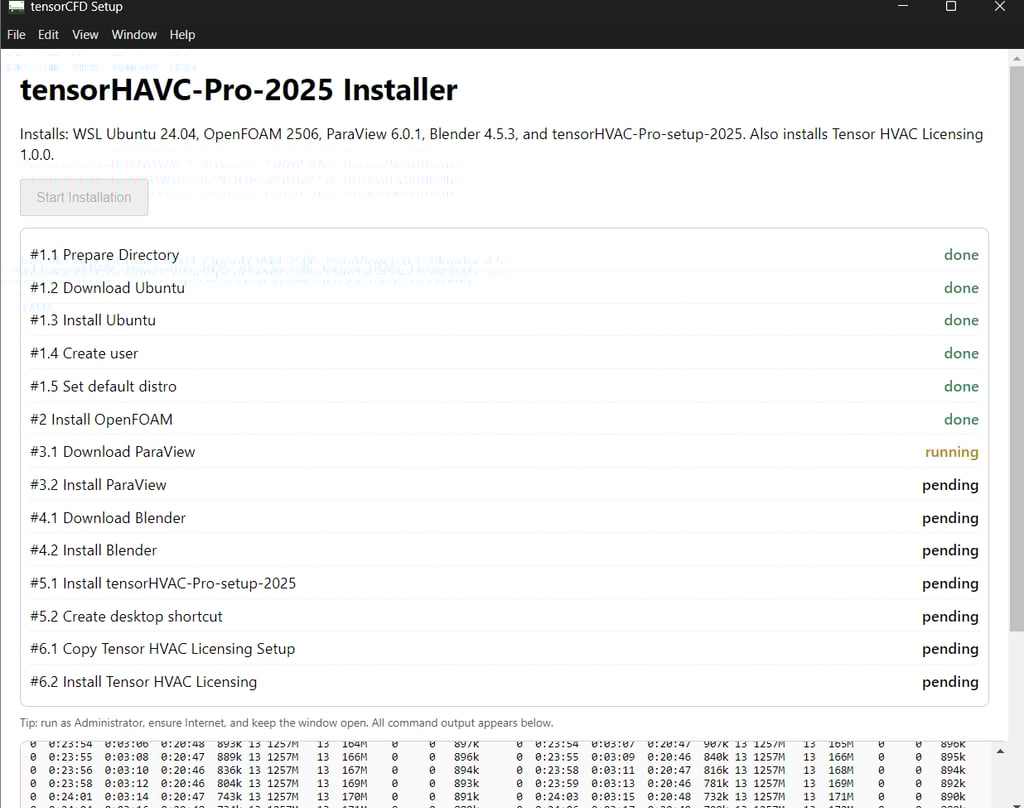
The tensorHVAC-Pro 2025 Installer and Uninstaller are designed to make installation and removal of all required software components as easy and automated as possible. This includes installing the simulation environment, visualization tools, and licensing setup—all without requiring manual configuration. Below is a guide explaining how to use both tools safely and effectively.
Installing tensorHVAC-Pro 2025
When you open the tensorHVAC-Pro-2025 Installer, you will see a list of installation steps. Each step runs automatically in sequence, and you can monitor progress as each stage is marked as done, running, or pending.
The installer will automatically set up the following components:
WSL Ubuntu 24.04 (Windows Subsystem for Linux)
OpenFOAM 2506 (the CFD engine)
ParaView 6.0.1 (for visualization)
Blender 4.5.3 (for 3D rendering)
tensorHVAC-Pro-2025 application
Tensor HVAC Licensing 1.0.0
To start the installation, click Start Installation and ensure the following:
You have a stable internet connection, as the installer will download several components.
You have at least 5 GB of free space on your C: drive.
You are running the installer as Administrator (this allows setup of WSL and system paths).
The installer will automatically create and configure the directories needed for tensorHVAC-Pro to run properly. After the installation is complete, you will have the following directories:
Linux > Ubuntu (penguin icon): This is your WSL Ubuntu environment where the CFD solver runs.
C:/WSL: Stores the system files for the Linux subsystem.
C:/tensorCFD/tensorHVAC-Pro-<version>: The main installation folder for tensorHVAC-Pro, including the application and supporting files.
Inside the tensorHVAC-Pro directory, you will also find ParaView and Blender already installed. These tools are integrated with tensorHVAC-Pro and can be used directly for post-processing and visualization. If you move these applications later or install different versions, you can manually update their file paths within the tensorHVAC-Pro settings.
Once installation is complete, a desktop shortcut will be created for quick access to the software. You can then open tensorHVAC-Pro and begin creating new simulation cases.
Uninstalling tensorHVAC-Pro 2025
If you need to remove the software, open the tensorHVAC-Pro-2025 Uninstaller. The uninstaller provides a list of all components that will be removed, including:
WSL/Ubuntu (and OpenFOAM)
ParaView
Blender
tensorHVAC-Pro application and shortcut
Tensor HVAC Licensing
Any remaining licensing shortcuts or files
Before uninstalling, make sure to:
Close all running instances of Ubuntu, ParaView, Blender, or tensorHVAC-Pro.
Run the uninstaller as Administrator to allow complete cleanup.
Click Uninstall to begin. The process will remove all related directories, applications, and system shortcuts. You will see the progress for each removal step listed as pending, running, or done.
After uninstallation, all installed folders under C:/WSL and C:/tensorCFD/tensorHVAC-Pro-<version> will be deleted, along with the Tensor HVAC Licensing components.
Back to user guide