How to Export a high resolution image in paraView
How to export a high resolution image in paraView in context of tensorHVAC-Pro post processing
DISCUSSION-FORUMDISCUSSION-GENERAL
Wiratama
11/25/20251 min read
How to Export High-Quality Images from ParaView
If you're preparing simulation results for reports, publications, or presentations, exporting high-quality images from ParaView is essential. Fortunately, ParaView provides a built-in screenshot tool that allows you to control resolution, aspect ratio, and output format.
This guide walks you through the exact steps to export clean, high-resolution images.
Step-by-Step Guide
Follow these steps inside ParaView:
1. Open Your Visualization in ParaView
Load your dataset, apply filters, and set up your view (color maps, lighting, camera angle, etc.) until you are satisfied with the final look.
2. Go to “Save Screenshot”
In the menu bar:
File → Save Screenshot
This opens the screenshot export window where you can control all output settings.
3. Enter the File Name
A dialog will ask where to save the file.
Choose:
File name
File location
File format (PNG, JPEG, TIFF, etc.)
For scientific visualization, PNG or TIFF is recommended due to lossless quality.
4. Set the Image Resolution (Important)
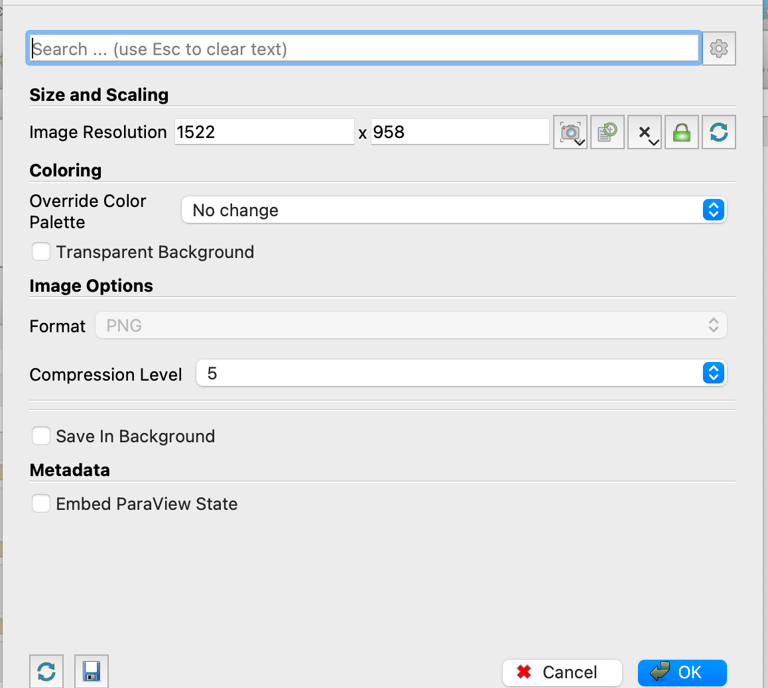
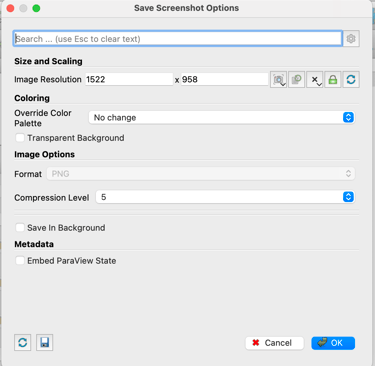
In the screenshot options window, you will see a section for Image Resolution.
You can:
Use the Current View Size, or
Enter a custom resolution, e.g.
1920 × 1080 (HD)
3840 × 2160 (4K)
5000 × 5000 (square, publication-ready)
Tip:
If you need sharper lines for reports, increase the resolution 2–4× your screen size.
5. (Optional) Adjust Advanced Settings
Depending on your ParaView version, you may see options like:
Override Color Palette
Transparent Background (useful for overlays)
Separator width
Save depth buffer
These are optional but useful for presentation graphics.
6. Click “OK” to Export
ParaView will generate and save the image in the selected format and resolution.
You now have a clean, high-quality visualization ready for reports, CFD documentation, or tensorHVAC-Pro project sharing.
Tips for Best Image Quality
Use parallel projection for engineering-style visuals.
Increase sample values in rendering if edges are jagged.
Use a white background if the image will go into a technical report.
Use a transparent background (PNG) for slides or diagrams.